Quick Start Guide: SLICE™ System Operation
Before you start
In order to use a brand new SLICE™ System, complete the following set-up tasks:
-
"Unbox" and assemble the SLICE system. Instructions for this are in the SLICE starter packet of materials that is shipped with new systems. You can access the SLICE Unboxing and Setup Guide (PDF) here.
We recommend that you contact our Technical Services staff by completing the Request Support form for assistance with SLICE system assembly.
-
 Use the SLICE alignment workflow to optimize the alignment of the light sheets with the focal plane of the detection objective. Proper alignment is necessary to achieve sharp, in-focus images.
 -
Calibrate the camera using the Autocalibration tool. Auto-calibrating enables your SLICE system to accurately measure structures in your specimens by determining the µm to pixel ratio for the microscope lens; it can also microadjust stage movements to keep the camera and stage precisely aligned.
-
Identify a cleared microscopy sample with fluorescence properties that are compatible with detection using the SLICE system. Note that many cleared tissues exhibit autofluorescence that can be visualized in the Blue channel on the SLICE system.
1. System startup and initialization
See also Powering on the SLICE System
A. Power-Up SLICE Hardware
-
SLICE computer workstation: Turn on the SLICE computer and log in.
-
SLICE Microscope Power: Turn on the main power switch located at the rear of the system.
WARNING: Make sure that all samples have been removed from the stage and the Refractive Index (RI) Media Reservoir is clear of obstructions before continuing. In the next step, the stage performs its initialization routine. Mounted sample or other obstructions may damage the microscope stage if present during initialization.
B. Launch Software
-
Launch BrightSLICE software from the Windows start menu or desktop shortcut.
Choose the profile that aligns with the detection magnification installed in your SLICE microscope (for example, SLICE 10x or SLICE 5x).
-
Select to initialize the stage when prompted.
The stage moves through its travel range and returns to the upper load position. The window closes with no reported errors to indicate that initialization was completed.
2. Attaching & removing the cuvette with sample
View a short video that shows how to mount sample onto the SLICE system:
See also Loading samples into SLICE
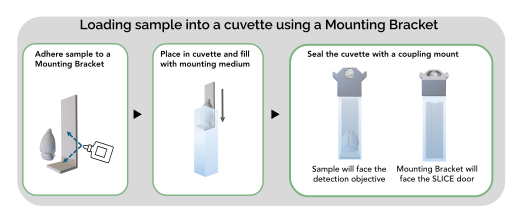
A. Load sample into a cuvette
-
Apply adhesive to a Mounting Bracket.
-
Gently place the sample, in the desired orientation onto the prepared Mounting Bracket.
-
Slide the sample and bracket into the cuvette and add mounting medium to cover the sample completely.
-
Use the SLICE stage coupling mount to close the cuvette.
Seal the cuvette with a bead of adhesive.
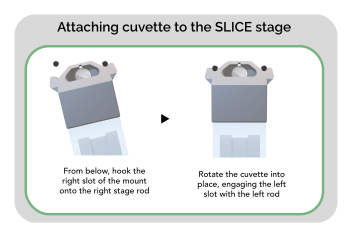
B. Mount the cuvette onto the SLICE stage
-
Check that the SLICE stage coupling mount is securely seated on the cuvette.
-
Attach: Gently engage the magnet by using the guide pin as a pivot point and rotating the sample into position.
Removing the Cuvette (End of Session)
-
Gently rotate the cuvette away from the magnet using one of the guide pins as a pivot point.
-
Clean: Wipe the cuvette to remove excess RI Medium, then clean it with lens cleaner and lint-free lens tissues.
3. Setting up channel presets
Color-channel presets are memorized camera and illumination settings that are stored with each color channel in the Multichannel Control panel. Once presets have been defined, image acquisition in multiple color channels can proceed without the need for user input.
A. Enable color channels for image acquisition
-
 Open the Multichannel Control panel from the Acquire ribbon if it is not already open.
 -
Click to enable or disable image acquisition from the three color channels available on the SLICE. The Multichannel Setup window opens, with the Multichannel Acquires (1-3) tab in view.
-
Check the boxes to enable image acquisition from Blue, Green, and/or Red channels.
-
Click to save your setup and close the Multichannel Setup window.
Enabled color channels display information and a color bar; disabled channels display "Not Enabled" and appear greyed out.
-
B. Optimize image quality one color channel at a time and save the presets
The goal in this step is to identify and save illumination and camera settings that provide a crisp image.
-
Click one of the colors in the Multichannel Control panel for optimization.
You can choose to view autofluorescence in many sample or choose a color channel appropriate for a fluorescent dye or protein in the sample.
You will see a message at the bottom of the panel indicating the “Executed” channel.
-
SLICE Light Sheet panel:
-
Select the Emission Filter from the dropdown that matches the color channel selected in the Multichannel Control panel.
-
In the Excitation pane:
-
Choose the illumination light sheet(s) to use: We recommend enabling both the left and right light sheet: click and .
-
Click for the Red, Green, or Blue color channel to turn on the laser for that color; the indicator light will be white
 to indicate that the laser is on.
 -
Set Excitation intensity (laser power %) to 20% initially.
-
Use the Software Joystick to move the sample into the light sheet illumination path. The image may appear out of focus, but you should see some signal in the image.
-
-
Adjust Offset in the Left and Right Sheet Controls to align the light sheet with the focal plane until the image appears in focus.
-
We recommend working with a single light sheet at a time, left or right, when adjusting the offset.
-
Once both the left and right light sheets produce in-focus images individually, turn both light sheets on simultaneously to ensure that they are co-planar (creating the same image).
-
-
-
Camera Settings panel:
-
Adjust Exposure (time): Use exposure times in multiples of ~17 ms (+/- 0.2 ms) to match the illumination repetition frequency and prevent banding artifacts.
-
Adjust Gain (sensitivity): Set Gain to 300–600 as a starting point.
-
-
Camera Histogram panel: Click to autoscale the dynamic range.
The white point defines upper end of the fluorescence intensity, and the black point defines its lower end.
-
Save the preset: Once the settings are optimized, click the Save button, e.g., , in the Multichannel Control panel to save the settings for the channel.
-
Repeat the image optimization process above for the other color channels.
4. Compensating for Refractive Index (RI) mismatch
Quick RI Compensation Map Setup
Refractive index (RI) compensation adjusts the offset of the light sheet(s) to mitigate optical distortions that occur when light passes through materials with different RIs, causing blurring artifacts.
-
Enable the color channel you want to map in the Multichannel Control panel.
-
In the RI Compensation Maps panel, do the following:
-
Uncheck the box to Use Interpolation Map.
-
Select Z as the Interpolation map type.
-
For the Channel to view, click the channel number ( or ) that corresponds to the channel selected in the Multichannel Control panel (step 1).
-
Click or if there are Z values displayed in the white box.
-
-
Adjust the Offset for each light sheet to obtain crsip, clear images and click :
-
Adjust left sheet offset: In the SLICE Light Sheet panel, disable the Right light sheet and enable the Left light sheet.
Adjust the Offset in the Left Sheet Controls pane until the image becomes crisp and clear.
-
Adjust right sheet Offset: Disable the Left light sheet and enable the Right light sheet.
Adjust the Offset for the right light sheet to obtain a crisp, clear image.
-
Verify that the light sheets are coplanar: Toggle between left, right, and both light sheets and adjust the Offset(s) as needed to produce a clear, uniform image with all illumination options.
-
Click in the RI Compensation Maps panel. This adds one RI compensation point to the map for the color channel.
-
-
Move along the Z-axis using the joystick until the image loses focus and repeat step 3.
-
Repeat the Offset adjustments in the SLICE Light Sheet panel at the new, blurry Z position for both light sheets (steps 3.a–c).
-
Once the field of view is in focus with all illumination options, click in the RI Compensation Maps panel to add another point to the map.
-
-
Move around the sample in the Z-orientation and add more points as needed, then check the box to Use Interpolation Map.
Based on the Z map created and interpolating between the RI compensation points, BrightSLICE software will auto-adjust the Offset to mitigate effects of RI differences in the microscopy sample.
5. Acquiring Images
Option A: Basic Z-Stack Acquisition
-
 Click Image Stack on the Acquire ribbon to open the Stack Acquisition panel.
 -
Set Top of stack: Move to the top of your sample using the joystick and click to indicate that the current Z-position is the Top of stack.
The image stack acquisition will start at this plane.
-
Set Bottom of stack: Move to the bottom of the sample and click to indicate the Bottom of stack.
-
Enter the Z-step interval or step size in the Distance between images box (typically 2 6 µm).
-
Click to begin imaging.
The image will display onscreen when the acquisition is complete and the image will appear in the Image organizer.
BrightSLICE will be in
 Show Images mode. Click
  Live image to switch back to viewing the live camera feed.
See also Acquire an image stack
Option B: Tissue Scan Workflow (multi-field of view image acquisition)
 Click Tissue Scan Workflowon the Acquire ribbon.
Follow the steps in the Tissue Scan Workflow to set up the image acquisition
6. Hardware Cleanup and Shutdown
Cleaning
-
Remove the cuvette from the stage.
-
Wipe the cuvette to remove excess RI compensation medium, then clean it with lens cleaner and lint-free lens tissue.
-
Store the sealed cuvette properly according to the protocol for your clearing method.
WARNING: Avoid getting RI compensation medium on any optics or stage hardware.
System Shutdown
Data: Transfer images to network storage.
Software: Close BrightSLICE software.
Microscope hardware: Turn off the main SLICE power switch.
Close the SLICE door; closing the door of the microscope protects the system from dust.