Batch filter
Purpose

|
The Batch |
Procedure Overview
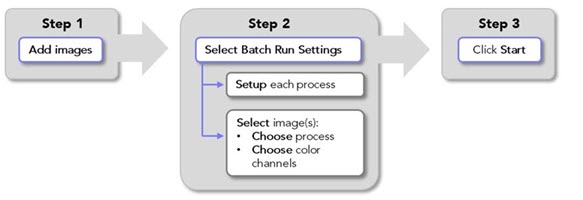
Adding images to the batch filter
-
 In the main window, go to the Image ribbon and click Batch
 The Batch Filter window opens.
-
Click Add images; the Image Open dialog opens.
Select the images that you want to process; hold the Shift and Ctrl keys on the keyboard to select multiple images.
-
Click Open to add the selected images to the Batch Filter.
The images you opened and their file paths will be listed in the Input Image column of the Batch Filter window.
Note that, depending on your computer hardware, image stacks with thousands of image planes may not be compatible with processing using the Batch Filter, causing BrightSLICE to hang or freeze.
 Click to view descriptions of buttons and controls in the Batch Runs section of the Batch Filter window
Buttons
Load images into the Batch Filter.
Remove all images from the Batch Filter.
Enable selection of multiple images so that you can set their batch processing settings.
Click to start the batch process.
Table columns
Note: You can re-size the table columns by dragging the vertical dividers.
-
 Copy: Create a copy of the image. This is convenient for running different batch processes on a single image, e.g., to evaluate settings in preparation for a large batch processing run.
 -
 Delete: Delete the image from the Batch Filter.
 -
Input Image: File names and locations of images that have been added to the Batch Filter are displayed.
-
Status: Displays "Setup Required" if you need to specify processing settings.
Displays “Ready to start” once the process settings have been selected.
Once the batch process is launched, general information about status is displayed.
-
Detail: Details of the batch process status are displayed during processing.
-
 Open: Click to open the processed file in the main window.
Image Filtering
Click to view instructions
See also Image filters
(Recommended) Identify appropriate image-filter settings for your images
Before processing a large group of images using the Batch Filter, we recommend that you identify appropriate image-filter settings first. To do this, follow the Image Filtering below to apply the image filter of your choice to one or a few representative images. Here are some tips for doing that:
-
Once you have added your representative image(s) to the Batch Filter, click
Copy to create a few copies. -
Set up several configurations of the filter that you intend to use with different settings that you want to test.
-
Review the results and identify the settings that provided the best results.
-
Repeat and fine-tune as needed.
Procedure for batch image-filtering
-
Load images for batch processing as described above.
-
Set up/modify image filters if you have not already done so (or go to Step 3 if your image-filters are ready):
-
Click Setup in Batch Settings section on the right to open the Image Filter Setup window.
-
Click to set up a new image filter.
To modify an existing image filter, select the saved configuration that you want to change and click Edit Configuration. Note: this will overwrite the existing configuration.
-
Specify a name and settings:
-
Name: Type a name for the filter settings, for example "Golgi default" or "Golgi 10px edge".
-
Filter Type: Select the image filter you want to configure from the drop-down menu.
-
Output Label: A default file-name suffix populates the field; you can change this by typing into the box.
-
Compression: Specify the amount of file compression (if any) to apply to the image using the slider.
-
Settings: Adjust the filter settings. The options depend on the Filter Type selected. See Image filters and settings below for specific information on settings for the available image filters.
-
-
Click to add the new/modified configuration to the Saved Configurations list and make it available for use in the Batch Filter.
-
Click to close the Image Filter Setup window and return to the Batch Filter window.
-
-
Select images and choose image-filters and color channels for batch processing:
One image at a time
-
Select an image by clicking its row in the Batch Runs table; the row will be highlighted in blue to indicate that the image is selected.
-
In the Batch Settings section on the right, select an image-filter configuration from the Image filter drop-down menu.
-
Check the boxes to choose the color channel(s) to include in the image-filtering process. If changes have been made to the number of channels being used for detection, click to update the Number of Channels.
Multiple images
-
Click to enable selection of more than one image.
-
Select images by clicking their rows or click ; blue highlight indicates the images that are selected.
-
In the Batch Settings section on the right, select an image-filter configuration from the Image filter drop-down menu.
-
Check the boxes to choose the color channel(s) to include in the image-filtering process. If changes have been made to the number of channels being used for detection, click to update the Number of Channels.
-
Click to finish choosing batch pipeline processing settings for the selected files.
-
-
The Status column for each image loaded into the pipeline should read "Ready to start."
You can view the settings chosen for each image by clicking on it in the Batch Runs table (blue highlight indicates the file that is selected). The chosen processing settings are displayed in Batch Settings on the right.
-
Click to launch the batch process.
-
The Detail column displays the current status of the process.
-
When processing is complete, the Status column will read "Completed" and you can view the results by clicking the open-file icon in the Open column.
-
Image filters and settings
Projection: Maximum and Minimum projection display an entire image stack in a single plane. To display the projection, BrightSLICE software identifies the maximum (or minimum) intensity value of each pixel along the Z axis for projection onto the 2D plane.
Learn more
Settings
Intensity Projection Settings:
-
Select Max intensity projection with light-on-dark images (e.g., fluorescence)
-
Select Min intensity projection with dark-on-light images (e.g., brightfield).
Sharpen Image: Reduce edge blurriness by enhancing edges using the unsharp mask technique.
Learn more
Notes: Sharpening enhances edges in images using a local adjustment of image contrast. Sharpening can enhance image noise, we recommend applying minimal image sharpening to avoid this.
Changes in image appearance after sharpening are subtle; you may have to zoom in to see the changes.
With RGB images, you must ungroup color channels in the Image Adjustment Panel before applying the filter.
Settings
-
Scale (µm): The size of the edges to sharpen. For most images, we suggest starting with 1–2 µm.
-
Amount (%): The magnitude of the image-contrast adjustment.
Scale and Amount settings affect each other; reducing one generally makes it possible to increase the other.
-
Threshold levels: The minimum difference between adjacent brightness levels needed for the filter to make an adjustment. The threshold setting can help you avoid sharpening weak edges and making smooth areas appear speckled.
Background subtraction: Minimize background in images by estimating and removing background illumination using an adaptive, local adjustment of image contrast.
Learn more
Note that, in addition to removing background in individual images, this filter can also reduce tiling artifacts seen in large image montages if it is applied to the individual tiles before assembly.
Settings
Diameter (µm): The physical scale of the foreground objects to preserve. In most cases, this value should be larger than the size of the objects you want to visualize. If this parameter is set too low (small), the centers of larger objects may be removed. If it is set too high, the filtering may not have the desired impact on image quality.
Tone mapping: Apply localized contrast adjustments to reveal details in both very bright and very dark regions of an image.
Learn more
Tone mapping applies local contrast adjustments that make it easier to visualize details in both bright and dark regions of an image simultaneously. It can be useful for exploring large images that exhibit a very high dynamic range between the brightest and darkest parts of the image.
The filter is appropriate for use with bit-depth images (10-bit or greater).
Tone mapping can be applied to one or more channels of the image. One common use is to better visualize neurons in tract-tracing experiments where the injection site is very bright compared to the regions of the brain to which the neurons project. In this case, tone mapping could be applied to the color channels used for tract tracing, but not applied to the color channel that labels cytoarchitecture.
How it works: Tone mapping separates images into a base layer that encodes the large-scale intensity variations and a detail layer that encodes small-scale details. Contrast adjustments are made to the base layer to smooth the large intensity changes, and the result is recombined with the detail layer.
Settings
Spatial scale: The scale at which base-layer smoothing in the spatial domain operates. This should typically be set several times larger than the diameter of the smallest objects visible in the image.
Range scale: Set the dynamic-range difference between details in the image to be preserved and background; this affects the base layer. Smaller values help preserve details in local regions with large variations in intensity, but may result in preservation of noise. Setting the value larger will smooth across regions with greater intensity differences, but if set too high may not preserve small or relatively dim details.
Contrast : Controls how much of the base-layer dynamic range is preserved. A value of 1 will make no change to the image, preserving more of the details in the original image. Setting a value of 0 will remove all large-scale intensity variation leaving only details behind and revealing more details in darker regions.
Rescale dynamic range: Check the box to rescale the intensities in the filtered image to match the dynamic range of the original image. This helps you visualize the result of tone mapping without having to readjust the global contrast controls using the Image adjustment .