Track workflow > Analyze Data
Analyze Data
Purpose
Analyze Data opens the Data Analysis and Plotting window where you can perform in depth analysis of worms and custom objects.
Procedure
You've already collected data with the Start Tracking step in the workflow.
- Click Analyze Data in the workflow (or View>Analyze Data in the menu) to open the Data Analysis and Plotting window.
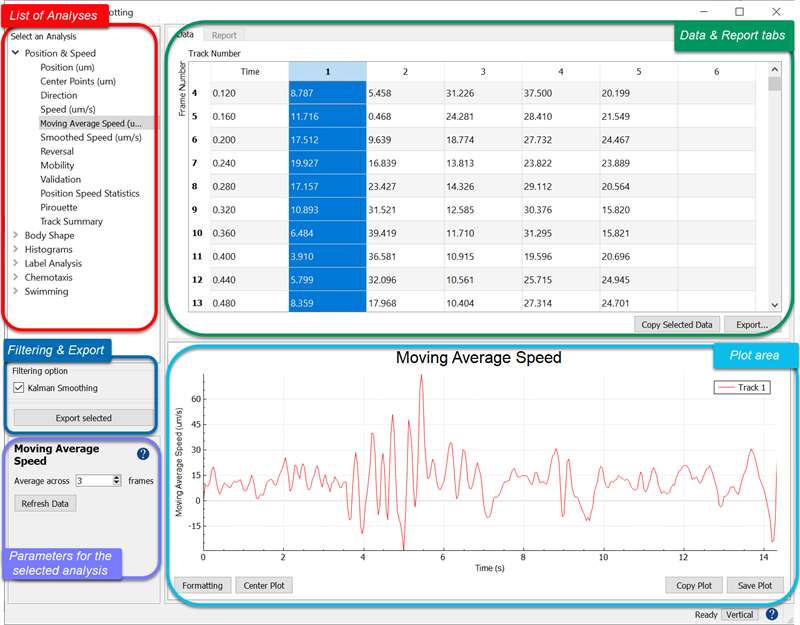
- Select an analysis from one of these categories:
Data tables and the video display are synchronized. When you select a frame number in the data table, the corresponding frame is displayed in the main window.
- Adjust the analysis parameters and click
- Click the Export button to export your data.
See also Data Analysis and Plotting window, Data and Report Tabs, Group analyses, Export Data
Watch an Analyses demonstration video (2:25) on our YouTube channel.