Data Analysis: Data and Report Tabs
When you open an existing project or use Analyze Data for a large data set, loading may be slower.
Data Tab
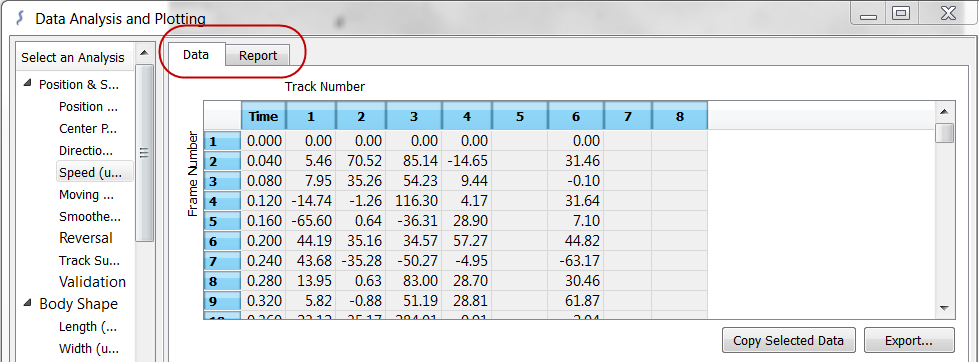
After tracking, WormLab displays the data in the Data tab in the window.
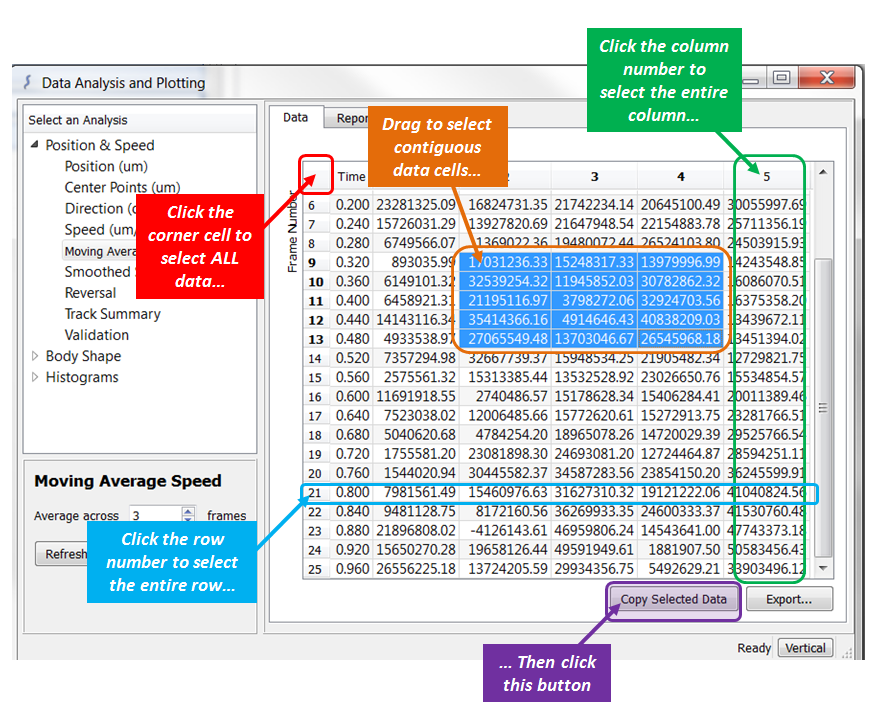
- Use Copy Selected Data to copy data to the Clipboard.
 Read more...
You can copy all or part of your data to the Clipboard and paste it in an email, a word processor, or another program compatible with the Paste command.
To select data:
- Click Export to export the current data view to a .CSV file. Read more...
You can export your data to a .CSV file for use in another program, such as MATLAB. CSV, or Comma Separated Values, represents the data format in a text file, where the cells of data in a row are separated by commas and the rows appear on separate lines.
To export your data:
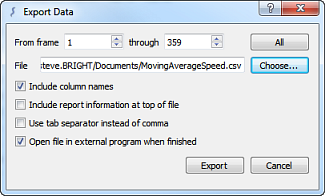
- Click Export. WormLab displays the Export Data dialog box.
- Select the frame data to export or click All to export all recorded frame data.
- Click Choose to choose another file name or location for the file.
- Select any of the other options:
- Include column names—Includes the column and row names in the file.
- Include sequence information at top of file—Includes the name of the analysis (e.g., Worm Data Moving Average speed (µm/s)) and the Sequence source (e.g., 5youngworms.avi).
If you are exporting data to import into Matlab or other software (such as GraphPad Prism), do not check. - Use tab separator instead of comma—Insets a tab instead of a comma between fields. This is useful if you are going to use the file to create a table in a word processor (or a similar program) since tabs are used to separate cells in a table.
- Open file in external program when finished—In addition to saving the file, this opens the file in the default program for .CSV files on your computer. If you have Microsoft Excel installed, the operating system selects Excel to open this file for you.
- Click Export. WormLab creates the file and exports the data.
- If the file already exists, ta numeric suffix is added to the file name (e.g., Position-1.csv, Position-2.csv, etc.).
Report Tab
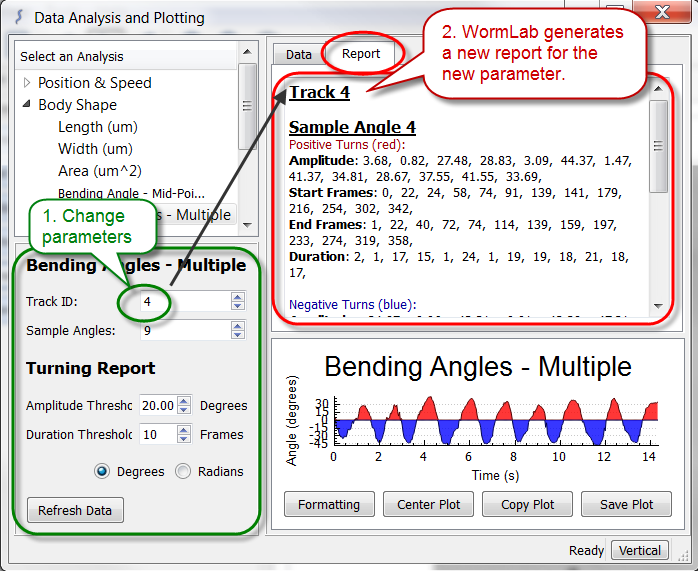
Many of the Position & Speed and Body Shape analyses provide a data summary called a report .
- If the Report tab is grayed out, there is no report available for the selected analysis.
- For some reports, it is possible to change the parameters to generate a new report (e.g., Bending Angles - Multiple).
 .
.