Macro view
Purpose

|
The Macro View window provides an aerial view of the entire tracing (with or without images). The view is a top-down perspective along the X and Y axes (as in the 2D window). Open it by clicking Macro View on the |
Navigating using Macro View
Quickly move to a specific part of the image outside of the current field of view:
- In the Macro View window, click the position you want to view; the area you clicked will be displayed in the 2D window.
Macro View options
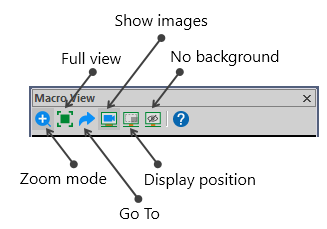
To use the options, click the icons in the Macro View window; most are also available by right-clicking in the Macro View window.

|
Zoom mode: Draw a marquee around an area of interest in Macro View to zoom in on it. This does not affect the image displayed in the 2D window. |

|
Full view: Displays the entire |

|
Go To: |

|
Show images: Image(s) are displayed along with any |

|
Display position: Displays the |

|
No background: Displays |