Serial Section Manager
Use the Serial Section Manager to define the key parameters (i.e., initial section thickness, Z position, etc.) for each section.
Adding new sections
- Click Tools>Serial Section Manager to display the Serial Section Manager window.
- Click the Add New Section icon
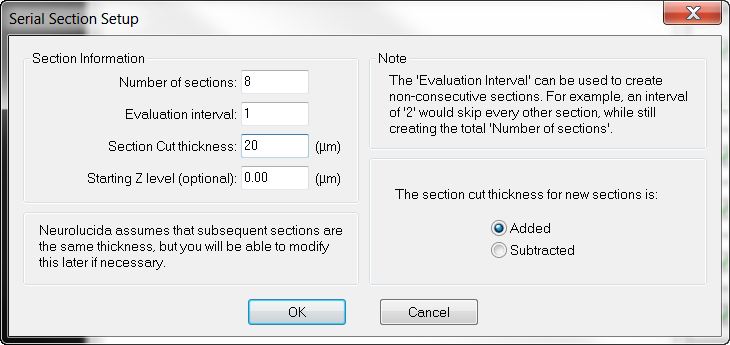
 ; if no section has been defined, Neurolucida displays the Serial Section Setup window.
- Under Section Information, modify the values as needed.
- Enter the Starting Section Number.
- Select Added or Subtracted then click OK.
- When you focus down through a section, the depth value increases in the negative direction. For example, if sections are 10µm-thick, and the top of the section is at a depth of 0, the bottom of the section is at a depth of -10µm.
 Once the first section (or series of sections) has been defined, Add New Section automatically adds a new section to the end of the section list using the parameters previously specified in Serial Section Setup.
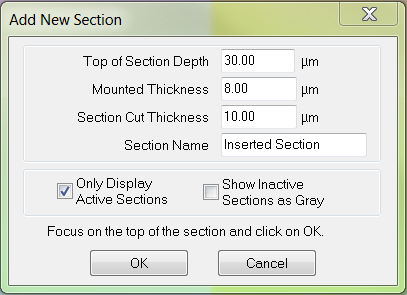
To add a section to the existing list of sections at a specific Z, use the Insert Section icon. 
Learn about the Serial Section Manager settings
 Section Z
Displays the depth value associated with each section. This is usually the Z coordinate for the top of the section.
Data contained within a section is not restricted to the Z range of that particular section.
Data points placed in a section can have any Z value, but generally the data makes more sense if you restrict the Z values to those contained within the section.
Section Name
Displays the name assigned to each section; either the default name, or the name you assign.
Toolbar
 New Section New Section |
Adds a new section. |
 Insert Section Insert Section |
Inserts a section between existing sections. |
 Edit Section Edit Section |
Lets you edit the properties of the selected section. |
 Delete Section Delete Section |
Deletes the currently selected section. The locations of the other sections are not changed with the deletion of a section. |
 Delete Other Sections & Data Delete Other Sections & Data |
Deletes all sections except the currently selected section.There is no Undo function for this operation. |
 Select by Section Select by Section |
Selects all objects in the current section. |
 Select Objects Not in a Section Select Objects Not in a Section |
|
 Display Current Section Only Display Current Section Only |
Displays the currently selected section only. |
 Show Suppressed as Gray Show Suppressed as Gray |
Displays objects not in the current section as gray
|
 Display Flanking Sections Display Flanking Sections |
Displays the sections immediately above and below the current section (e.g., if section 9 is active, sections 8, 9 and 10 are displayed).
|