Display window
Watch the tutorial
Click the display icon in the toolbar to open the Display window. 
Use the Display window to select overlays to display on tracked worms.
Overall Display controls
display all back-tracked frames: If you used back tracking (see Tracking Parameters in Tracking panel), and this checkbox is cleared WormLab software quickly processes through all the frames in the sequence without displaying frames that do not have any type of overlap or entanglement. This is much faster, but it causes a spike in CPU usage that may cause problems for older or less powerful computers. Check this checkbox to avoid the CPU-usage spike; WormLab software will display every frame in reverse sequence.
Show Overlays: Check or clear this checkbox to quickly show or hide all of the overlays selected in the box below.
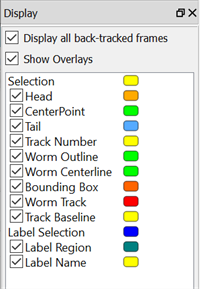
Changing a color
- In the Display window, click a color thumbnail. WormLab displays the Select Color dialog box.
- Select a color and click OK.
Selection
 Head
Head
Indicates the worm's head with a square.
CenterPoint
Indicates the worm’s midpoint with a disc.
Tail
Indicates the worm's tail with a triangle.
Track number
Assigns a number to a tracked worm.
Worm outline
Outlines the body of the worms.
Worm centerline
Displays the centerline from head to tail.
Bounding box
Encompasses head and tail and constantly re-sizes the box to accommodate the worm’s movements.
Worm track
Indicates the worm track with a line and an X at the starting point to visualize each worm’s path across the frames.
Track baseline
Displays the track generated from the centroid of the worm. The centroid is the average of all points along the worm centerline, and is often located outside of the worm body.
Label Selection
If you have defined a label to delineate a region of interest, these controls show or hide your label.
Label Region
Displays the region boundary.
Label Name
Displays the region name.