Enable multichannel acquisition
Purpose

|
Use this option to acquire fluorescence and false colored images. |
Procedure
-
 Turn on Live image mode.
 -
The device command sequences necessary for each channel have been defined.
-
Configure your system for a multichannel acquisition. See Automating the multichannel acquisition process
-
Click Acquire>Acquisition Tool Panels>Show all to open the panels used during the acquisition.
-
The Multichannel Control tool panel displays the channels configured in Step 2.
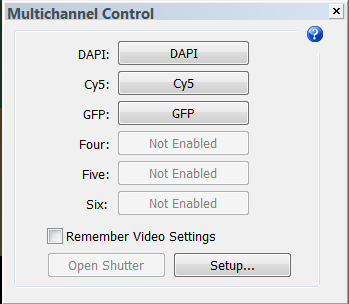 .
.Optional : Click the Setup button to review the channel's settings.
-
Check the Remember Video Settings checkbox
-
Click the device command sequence button for the first channel; adjust the exposure in the camera settings until a full balanced histogram is achieved.
-
Click the device command sequence for the next channel; adjust the exposure in the camera settings until a full balanced histogram is achieved.
-
Click the device command sequence for the last channel; adjust the exposure in the camera settings until a full balanced histogram is achieved.
-
Neurolucida has "memorized" the camera settings for each channel and is ready to apply them for acquisition.
-
-
-
Click Enable multichannel in the Capture section of the Acquire ribbon.
-
Neurolucida performs the acquisition tasks defined for the first channel.
-
You may be prompted you to adjust the camera settings. Click OK.
-
Neurolucida performs the acquisition tasks for the other channels defined.